Backing Up a Mac to Google Drive with restic + rclone
Back up a Mac to Google Drive, and get it all back after a wipe. Encrypted, deduplicated, versioned.
Everything below has been run end to end: 302 GiB of source data compressed to a 37 GiB upload, a full machine wipe, and a complete restore onto a fresh install with a different username.
| Measurement | Result |
|---|---|
| Source → stored | 302 GiB → 37 GiB |
| Upload time | 1h 41m |
| Restore time | 24m |
| Encryption | client-side, before upload |
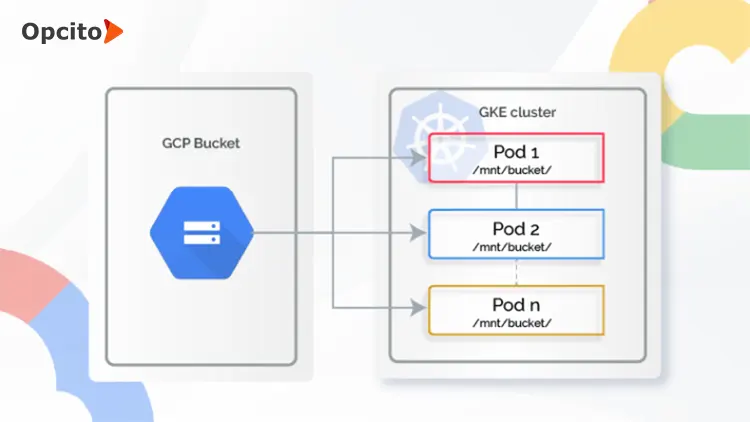
Google Drive on its own is file sync, not backup — it mirrors deletions and keeps thin version history. This runbook uses restic for the backup logic and rclone as the pipe to Drive. Drive never sees your filenames or contents, only encrypted blobs.
Scope
Covers: your files — code repos, notes, documents, dotfiles, and all .claude directories.
Does not cover: applications, macOS settings, keychain, browser profiles, Photos library, or anything that makes the machine bootable. For that you want Time Machine on an external SSD. The two are complements, not alternatives.
Part 1 · Set up the backup
Steps run in order. Each one ends with something you can check before moving on.
1. Install the tools
brew install rclone resticIf Homebrew isn’t installed, get it from brew.sh first and run the two eval lines it prints at the end.
2. Configure the Drive remote
rclone configAnswer the prompts:
| Prompt | Answer |
|---|---|
n/s/q | n (new remote) |
name | gdrive — remember this, it becomes part of the repository address |
Storage | drive — Google Drive, not “google cloud storage” |
client_id / client_secret | leave both blank — just press Enter twice |
scope | 1 (full access) |
service_account_file | blank |
Edit advanced config | n |
Continue using the shared client_id anyway? | y |
Use web browser to authenticate | y → sign in, approve |
Shared Drive (Team Drive) | n |
Checkpoint:
rclone about gdrive:Prints your storage quota. If it does, auth works.
About that warning line
Every rclone command will print a notice that the shared client ID is being retired during 2026. It is a warning, not an error — the backup and the restore both work. The throttling settings in step 8 are what make it fast enough; you don’t need your own OAuth client.
If you ever do get rate-limited to a standstill, or the shared client stops working, see the appendix.
3. Generate the repository password
openssl rand -base64 32 > ~/.restic-pw
chmod 600 ~/.restic-pw
cat ~/.restic-pw
Stop here and store this. Put that string in a password manager now, before continuing. There is no reset, no recovery, and no support line. Without it the backup is 37 GB of permanently unreadable noise.
Store it somewhere that survives the machine being wiped — not a note on the Mac’s desktop.
4. Write the environment and exclude files
cat > ~/.restic-env <<'EOF'
export RESTIC_REPOSITORY="rclone:gdrive:backups/mbp-restic"
export RESTIC_PASSWORD_FILE="$HOME/.restic-pw"
EOF
chmod 600 ~/.restic-env
cat > ~/.restic-excludes <<'EOF'
.DS_Store
**/node_modules
**/.venv
**/venv
**/__pycache__
**/.mypy_cache
**/.pytest_cache
**/.ruff_cache
**/.ipynb_checkpoints
**/target
**/build
**/dist
**/.next
**/.parcel-cache
**/.terraform
**/*.pyc
Downloads/*.dmg
Downloads/*.iso
Downloads/*.pkg
EOFEverything excluded is regenerable — dependency trees, build output, caches. Skipping them is what turns a 300 GB upload into a 37 GB one. Note that .git is deliberately not excluded: you want your repository history.
5. Create the repository
source ~/.restic-env
restic init
Checkpoint: prints created restic repository <id> at rclone:gdrive:backups/mbp-restic. Write that repository ID down next to the password.
6. Grant Full Disk Access to your terminal
macOS blocks Documents, Desktop, Downloads and Pictures from terminal apps by default. Without this, restic quietly skips them.
System Settings → Privacy & Security → Full Disk Access → + → add Terminal (or iTerm, Ghostty, whichever you use) → toggle on → quit and reopen the terminal.
7. Decide what to back up, then dry-run it
restic backs up exactly the paths you name and nothing else. Edit this list for your machine.
# reads disk, uploads nothing
source ~/.restic-env
restic backup \
  ~/CodingProjects ~/Documents ~/Desktop ~/Downloads \
  ~/.claude ~/.ssh ~/.config ~/.aws ~/.kube ~/.zshrc \
  --exclude-file="$HOME/.restic-excludes" \
  --dry-run -v 2>&1 | tail -20
Any path in the list that doesn’t exist causes an error — drop it. Check first with ls -d <paths>.
Checkpoint: the last lines report Would add to the repository: X GiB (Y GiB stored). Y is what actually uploads — after deduplication and compression it is typically 5–10× smaller than X. Sanity-check Y against your upload speed before starting the real run.
Don’t skip .claude
~/.claude holds settings, agents, plugins, MCP configuration, and full session transcripts under projects/. It’s usually a few hundred MB and it is not reconstructible.
Repositories also carry their own .claude/ directory with settings.local.json and project instructions. Those live inside your code folders, so they come along automatically — but only if you don’t add .claude to the exclude list. Don’t.
8. Run the backup
The two flags below are the difference between finishing tonight and giving up. Google Drive rate-limits per API call, not per byte: --pack-size 128 uses 128 MiB pack files instead of the 16 MiB default, cutting API calls by roughly 8×. Without it you will see a wall of rateLimitExceeded errors.
# plug in the charger first
export RCLONE_DRIVE_PACER_MIN_SLEEP=500ms
export RCLONE_DRIVE_PACER_BURST=1
export RCLONE_TPSLIMIT=6
export RCLONE_TPSLIMIT_BURST=6

source ~/.restic-env
caffeinate -dims nohup restic backup \
  ~/CodingProjects ~/Documents ~/Desktop ~/Downloads \
  ~/.claude ~/.ssh ~/.config ~/.aws ~/.kube ~/.zshrc \
  --exclude-file="$HOME/.restic-excludes" \
  --pack-size 128 \
  --verbose > ~/restic-first-run.log 2>&1 &
caffeinate stops idle sleep; nohup … & lets it survive closing the terminal. Keep the lid open — closing it sleeps the Mac regardless.
Watch progress in a second tab:
# log lines, minus rclone's noise
tail -f ~/restic-first-run.log | grep -v '^rclone:'

# bytes actually landed — the honest progress meter
rclone size gdrive:backups/mbp-restic
Interrupted? Re-run the identical command. restic commits pack files as it goes and resumes from what’s already uploaded. A multi-day upload across several nights is fine.
Checkpoint: the log ends with Added to the repository: … and snapshot <id> saved. Note the word “Added” — a dry run says “Would add”.
9. Verify it — this step is not optional
An untested backup is a hope. Restore something small and compare it byte for byte.
source ~/.restic-env
mkdir -p /tmp/restore-test
restic restore latest --target /tmp/restore-test --include ~/.claude
diff -r ~/.claude /tmp/restore-test/Users/$USER/.claude
rm -rf /tmp/restore-test
Only .DS_Store differences should appear — those are excluded on purpose. Then check the repository structure:
restic checkYou want no errors were found. A note about “additional files … duplicate data” is harmless leftover from an interrupted run; restic prune clears it.
Also verify the password, not just the file
Prove you can open the repository by typing the password rather than reading ~/.restic-pw — because after a wipe that file is gone.
unset RESTIC_PASSWORD_FILE
export RESTIC_REPOSITORY="rclone:gdrive:backups/mbp-restic"
restic snapshots
Paste from your password manager at the prompt. If the snapshot list appears, you are genuinely covered.
Part 2 · Keeping it current
Later runs upload only changed chunks, so they take minutes rather than hours. Either re-run the command from step 8 by hand, or schedule it.
Wrapper script
mkdir -p ~/bin
cat > ~/bin/backup-mac.sh <<'EOF'
#!/bin/bash
export PATH="/opt/homebrew/bin:$PATH"
export RCLONE_DRIVE_PACER_MIN_SLEEP=500ms
export RCLONE_DRIVE_PACER_BURST=1
export RCLONE_TPSLIMIT=6
export RCLONE_TPSLIMIT_BURST=6
source "$HOME/.restic-env"

restic unlock >/dev/null 2>&1

restic backup \
  "$HOME/CodingProjects" "$HOME/Documents" "$HOME/Desktop" "$HOME/Downloads" \
  "$HOME/.claude" "$HOME/.ssh" "$HOME/.config" "$HOME/.kube" "$HOME/.zshrc" \
  --exclude-file="$HOME/.restic-excludes" \
  --pack-size 128

restic forget --keep-daily 7 --keep-weekly 4 --keep-monthly 12 --prune
EOF
chmod +x ~/bin/backup-mac.sh
The forget line keeps 7 daily, 4 weekly and 12 monthly snapshots and deletes the rest.
Schedule it for 2am
Replace YOURNAME throughout:
cat > ~/Library/LaunchAgents/com.local.restic-backup.plist <<'EOF'
<?xml version="1.0" encoding="UTF-8"?>
<!DOCTYPE plist PUBLIC "-//Apple//DTD PLIST 1.0//EN" "http://www.apple.com/DTDs/PropertyList-1.0.dtd">
<plist version="1.0">
<dict>
  <key>Label</key><string>com.local.restic-backup</string>
  <key>ProgramArguments</key>
  <array>
    <string>/usr/bin/caffeinate</string>
    <string>-dims</string>
    <string>/Users/YOURNAME/bin/backup-mac.sh</string>
  </array>
  <key>StartCalendarInterval</key>
  <dict><key>Hour</key><integer>2</integer><key>Minute</key><integer>0</integer></dict>
  <key>StandardOutPath</key><string>/Users/YOURNAME/restic-cron.log</string>
  <key>StandardErrorPath</key><string>/Users/YOURNAME/restic-cron.log</string>
</dict>
</plist>
EOF

launchctl load ~/Library/LaunchAgents/com.local.restic-backup.plist
launchctl list | grep restic
Two gotchas:
- Add
/bin/bashto Full Disk Access as well, or the 2am run fails on Documents and Desktop and you won’t be watching. - If the Mac is asleep at 2am, launchd runs the job at next wake. That’s fine.
Part 3 · Before a planned wipe
If you know the machine is being reimaged — MDM enrolment, hardware swap, offboarding — do these on the day.
1. Run one final backup
Your last snapshot is a frozen picture. Anything created since is not in it. Re-run step 8’s command; it takes minutes.
2. Write the recovery card somewhere off the machine
Save this in your password manager and screenshot it to your phone. After the wipe you have no notes, no browser history, and no shell aliases.
REPO      rclone:gdrive:backups/mbp-restic
REPO ID   <from restic init>
ACCOUNT   <the Google account that owns the Drive>
PASSWORD  <this password manager entry>
REMOTE    must be named exactly "gdrive"

RESTORE   brew install rclone restic
          rclone config  → name gdrive, type drive, scope 1
          export RESTIC_REPOSITORY="rclone:gdrive:backups/mbp-restic"
          restic restore latest --target ~/restored --no-lock
3. Grab what restic can’t
- Turn on browser sync (Chrome/Safari profiles, saved passwords, extensions)
- Note any application licence keys
- Check whether anything you care about lives in
~/Library/Application Support— that whole tree is excluded - Photos library and Music, if they aren’t already in iCloud
- Run
brew leaves > ~/Documents/brew-installed.txtand back it up — it makes reinstalling your toolchain one command
Part 4 · Restore onto a fresh machine
Nothing survives the wipe except what’s in Drive and what’s in your head. Start from a bare terminal.
1. Homebrew, then the tools
/bin/bash -c "$(curl -fsSL https://raw.githubusercontent.com/Homebrew/install/HEAD/install.sh)"
# run the two eval lines it prints at the end, then:
brew install rclone restic
2. Recreate the remote
Same prompts as Part 1 step 2. The name must match exactly — the repository address contains it.
rclone config
# n → gdrive → drive → blank id/secret → scope 1 → n → y → browser auth → n → y → q
3. Open the repository
export RESTIC_REPOSITORY="rclone:gdrive:backups/mbp-restic"
restic snapshots --no-lock
Type the password when prompted. --no-lock matters: restores are read-only and don’t need a lock, and taking one is the first thing that trips Drive’s rate limiter.
4. Open the throttle
The pacing settings from the upload are wrong here. Reads are far cheaper on Drive’s API — leaving the limits in place makes a 25-minute restore take 16 hours.
export RCLONE_TPSLIMIT=0
export RCLONE_TPSLIMIT_BURST=0
export RCLONE_DRIVE_PACER_MIN_SLEEP=10ms
export RCLONE_DRIVE_PACER_BURST=100
export RCLONE_BUFFER_SIZE=64M
5. Restore into a staging folder
Check free space first — you need room for the full uncompressed size.
df -h ~
mkdir -p ~/restored
caffeinate -dims restic restore latest --target ~/restored --no-lock
Don’t restore to
/. restic recreates original absolute paths. If your new username differs from the old one — very common after a re-enrolment — restoring to/creates an orphaned/Users/oldnamefolder outside your home directory.Staging into
~/restoredthen moving is safe either way. Files land under~/restored/Users/<oldname>/….
Restarting is safe: already-written files are skipped.
6. Move files into place
Look before you move — check what the fresh install already created:
R=~/restored/Users/OLDNAME
ls -la ~/.config ~/.zshrc 2>&1
ls -la ~/Documents ~/Desktop ~/Downloads
Directories that don’t exist yet — straight move. Same filesystem, so this is instant and needs no extra space:
mv "$R/CodingProjects" ~/
mv "$R/.claude" ~/
mv "$R/.ssh" ~/
mv "$R/.kube" ~/
mv "$R/.zshrc" ~/
Directories that already exist — merge rather than overwrite. -n refuses to clobber:
cp -Rn "$R/.config/" ~/.config/
mv "$R/Documents/"* ~/Documents/ 2>/dev/null
mv "$R/Desktop/"*   ~/Desktop/   2>/dev/null
mv "$R/Downloads/"* ~/Downloads/ 2>/dev/null
~/.config in particular will already hold the rclone config you just created — -n preserves it.
7. Fix SSH permissions
ssh silently ignores keys that are group- or world-readable.
chmod 700 ~/.ssh
chmod 600 ~/.ssh/id_* ~/.ssh/config 2>/dev/null
chmod 644 ~/.ssh/*.pub ~/.ssh/known_hosts 2>/dev/null
ssh -T [email protected]
Checkpoint: GitHub greets you by username.
8. Reinstall your toolchain
Your configs came back; the programs didn’t. Binaries live in /opt/homebrew, which was wiped.
# if you saved brew-installed.txt in Part 3:
xargs brew install < ~/Documents/brew-installed.txt

# otherwise, see what your shell config expects:
grep -nE 'alias|export PATH' ~/.zshrc
Anything referencing /opt/homebrew/opt/… is a package to reinstall. Common ones: gh, uv, poetry, direnv, node, postgresql, the Google Cloud SDK, and oh-my-zsh. Install oh-my-zsh with --keep-zshrc so it doesn’t overwrite your restored config:
sh -c "$(curl -fsSL https://raw.githubusercontent.com/ohmyzsh/ohmyzsh/master/tools/install.sh)" "" --keep-zshrc9. If your username changed, fix live configs — but only live ones
Restored files contain the old absolute path baked in. Find them:
grep -rl "OLDNAME" ~/CodingProjects \
  --include="*.json" --include="*.yaml" --include="*.toml" \
  --include=".envrc" --include="*.sh" 2>/dev/null
Read the list before running any bulk replace. Most hits will be historical run output — experiment logs, hydra configs, saved results, dashboard data. The old path in those is a factual record of where the run happened. Rewriting it falsifies your own archive for zero benefit. Leave them alone.
Only two categories actually need fixing: live config and scripts you execute.
Per-repository Claude settings — these hold path-keyed permission rules, so Claude Code re-prompts for approvals until they’re corrected:
for f in ~/CodingProjects/*/.claude/settings.local.json; do
  grep -q OLDNAME "$f" 2>/dev/null && \
    sed -i '' 's|/Users/OLDNAME|/Users/NEWNAME|g' "$f" && echo "fixed: $f"
done
Then shell scripts, checking each one first:
grep -rn "OLDNAME" ~/CodingProjects --include="*.sh"
# review, then for the ones that are genuinely path-dependent:
sed -i '' 's|/Users/OLDNAME|/Users/NEWNAME|g' path/to/script.sh
Also worth checking: ~/.zshrc, ~/.kube/config, ~/.gitconfig.
The one-line alternative
A symlink makes every old path resolve without editing anything:
sudo ln -s /Users/NEWNAME /Users/OLDNAMEOne directory, two names. Reversible with sudo rm /Users/OLDNAME — deleting a symlink never deletes what it points at. It papers over stale paths rather than fixing them, which is a fair trade if you want a working machine today. On an MDM-managed Mac, note that it does add a visible entry under /Users.
Don’t rename the account. Tempting, but on a managed Mac the short name is often bound to your identity provider, FileVault escrow, and MDM inventory. Changing it can cost you your login. Ask IT before considering it.
10. Rebuild project environments
Virtualenvs and node_modules were excluded, so they aren’t broken — they simply aren’t there. Rebuild only what you’re working in, not all of them at once.
# poetry
cd ~/CodingProjects/PROJECT
poetry config virtualenvs.in-project true
poetry install

# uv
uv sync

# pip
python3 -m venv .venv && source .venv/bin/activate && pip install -r requirements.txt

# node
npm install
If a project uses direnv, create the virtualenv before running direnv allow — the .envrc usually sources .venv/bin/activate, which must exist first. Your .env files and API keys came back with the backup.
Checkpoint:
python -c "import sys; print(sys.executable)"Should print the path inside the project’s own .venv.
11. Clean up
find ~/restored -type f | head -20   # confirm only leftovers remain
rm -rf ~/restored
df -h ~
Then set the backup up again on the new machine — Part 1 step 4 onward, pointing at the same repository. The first run will be fast, since almost every chunk is already stored.
Part 5 · Reference
Everyday commands
| Task | Command |
|---|---|
| List backup points | restic snapshots |
| Browse a snapshot’s files | restic ls latest | less |
| Restore everything | restic restore latest --target ~/restored |
| Restore one folder | restic restore latest --target ~/restored --include /Users/NAME/obsidian |
| Repository health | restic check |
| Deep check (monthly) | restic check --read-data-subset=5% |
| Reclaim space | restic prune |
| Clear a stale lock | restic unlock |
| Repo size in Drive | rclone size gdrive:backups/mbp-restic |
| Delete the repo permanently | rclone purge gdrive:backups/mbp-restic |
When it goes wrong
| Symptom | Cause and fix |
|---|---|
rateLimitExceeded, upload crawling | Too many API calls against the shared client ID’s quota. Add --pack-size 128 and the pacer variables from Part 1 step 8 — that cuts API calls roughly 8× and is what fixes it in practice. Retries in the log that end operation successful after 1 retries mean it’s grinding through, not broken. |
| Restore taking many hours | Upload throttle settings still active. Apply Part 4 step 4. |
repository is already locked | A previous run was killed. restic unlock, or use --no-lock for read-only operations. |
<path> does not exist, skipping | A path in your list isn’t on this machine. Remove it from the command. |
| Documents/Desktop missing from the backup | Full Disk Access not granted to the terminal. Part 1 step 6, then quit and reopen the terminal. |
Token has been expired or revoked | Your Drive authorisation lapsed or was revoked. Re-authorise in place — the repository and everything in it stays valid: rclone config reconnect gdrive:. |
| Progress bar never appears | Output was redirected to a file. restic only draws it to a terminal. Track rclone size instead. |
| Repo size flat for several minutes | Usually normal — restic alternates between hashing and uploading. Check the process is alive: ps -o etime=,time=,%cpu= -p <pid>. Climbing CPU time means it’s working. |
| Reported size much smaller than your data | Working as intended. Deduplication plus compression typically gives 5–10×. A restore reconstructs every byte and verifies hashes on the way back. |
What lives in Drive
Open backups/mbp-restic in the Drive web interface and you’ll see six items. None of them are browsable, and that’s the point.
| Item | What it is |
|---|---|
config | Repository metadata. ~155 bytes. Reveals nothing about your data. |
keys/ | Your password’s key derivation. Delete this and the data is gone forever. |
data/ | Encrypted pack files in 00–ff folders. Effectively the whole backup by volume. |
index/ | Maps chunks to packs. Recoverable with restic repair index if damaged. |
snapshots/ | One small file per backup run — each is a restorable point in time. |
locks/ | Transient. Empty when nothing is running. |
Treat the folder as load-bearing. Never rename, move, or “tidy” it from the Drive interface, and never share it. Renaming breaks the repository address in your config; deleting
keys/is unrecoverable.
Appendix · only if rclone’s shared login stops being enough
Everything above uses rclone’s built-in Google credentials, which is fine for a one-off backup and restore. Two situations change that: the throttling settings stop being enough to finish a run, or rclone’s shared client is finally retired and authorisation fails outright. In either case you’d give rclone its own Google credentials, which come with their own API quota.
It needs a Google Cloud project where you hold roles/oauthconfig.editor or Owner. On most company projects you won’t, so this starts with asking whoever does:
# run by the project owner
gcloud projects add-iam-policy-binding PROJECT_ID \
  --member="user:[email protected]" \
  --role="roles/oauthconfig.editor"
Then, in the console: enable the Google Drive API; configure the consent screen under Google Auth Platform (Internal for a Workspace account — External apps must be published, or Google expires the token after seven days); and create an OAuth client ID of type Desktop app. Copy the ID and secret in.
rclone config
# e → gdrive → paste client_id and client_secret → re-authorise in the browser
Nothing in Drive changes and no data is re-uploaded. You are only swapping which credentials rclone signs in with.
One last thing
If the Drive account belongs to an employer, the backup goes away when you do. And a cloud repository of your files still isn’t a bootable machine — after a disk failure you’d reinstall macOS, reinstall applications, redo settings, and only then restore files.
An external SSD running Time Machine covers both gaps for the price of a nice dinner, and Migration Assistant turns a week of reconstruction into a 40-minute restore. Run both.